Cue Help
This guide covers Cue 1.2.1.
What Cue does
Cue is an AI assistant that lives in your Mac's menu bar. It has no main window and no Dock icon — it shows up only when you need it, next to whatever you're working on. It does two things:
- Works on what you select. Highlight text in any app and a small toolbar appears beside it. Each button is a skill — Translate, Explain, or anything you write yourself. Click one to get a streaming answer you can follow up on, or press a skill's shortcut to replace your selection with the result.
- Works on what you hear. Cue can capture a meeting app's audio, transcribe it, and translate it into floating subtitles — entirely on your Mac, with no network and no cloud AI.
Selection skills run on an AI you already have: the Claude Code or Codex command-line tool signed in on your Mac, or your own API key for any OpenAI-compatible service. Live subtitles and translation don't need any of these.
Requires macOS 26 or later.
Install & first launch
- Download Cue (version 1.2.1) and open the disk image.
- Drag Cue into Applications, then open it from there.
- Look for the Cue icon in the menu bar at the top of your screen. Click it any time to open Cue's menu.
- On first launch Cue opens Settings → Permissions so you can grant access — see Permissions.
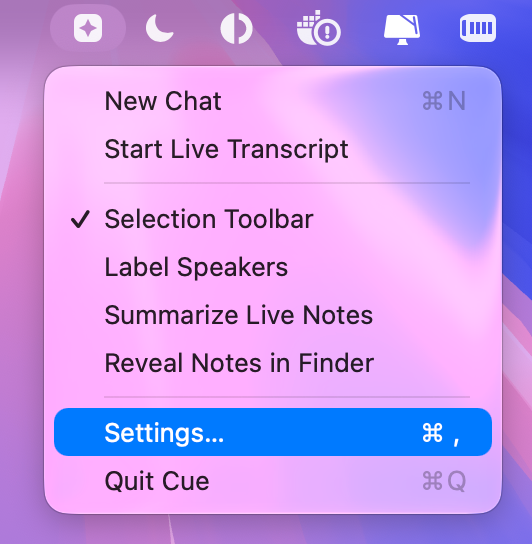
The menu has everything you need day to day:
| New Chat ⌘N | Open an empty chat window — ask anything without selecting text first. |
| Start / Stop Live Transcript | Start or stop live subtitles for your meeting audio. |
| Selection Toolbar | Turn the automatic toolbar on or off. |
| Label Speakers Pro | Label who said what after a meeting ends. |
| Summarize Live Notes Pro | Write an AI summary when a meeting ends. |
| Reveal Notes in Finder | Open your Live Notes folder (shown when auto-save is on). |
| Settings… ⌘, | Open Settings. |
| Quit Cue ⌘Q | Quit the app. |
To start Cue automatically, turn on Settings → General → Launch at login.
Permissions
Cue asks for three macOS permissions, each only for the feature that needs it. You can see their status — and grant them — in Settings → Permissions.
| Permission | Why Cue needs it |
|---|---|
| Accessibility | Lets the selection toolbar read the text you highlight in other apps, and lets skill shortcuts paste their result back. |
| Screen Recording | Captures audio from meeting apps so it can be transcribed and translated. Cue records audio only — not your screen. |
| Speech Recognition | Converts the captured meeting audio into text on your Mac. |
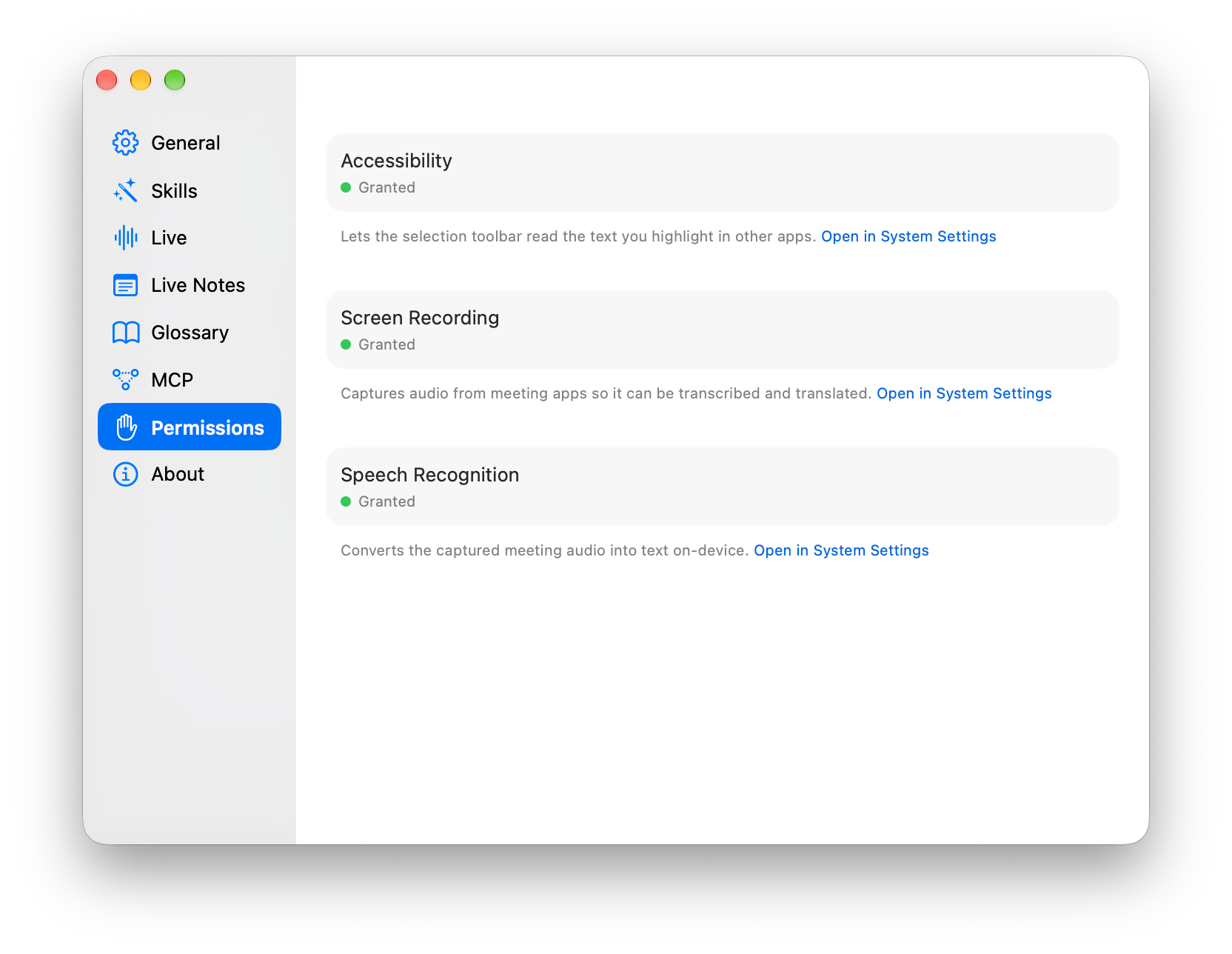
Click Grant next to a permission and macOS takes you to the right pane of System Settings. Turn Cue on there. Once Accessibility is granted, the selection toolbar starts working within a couple of seconds — no restart needed.
Choose your AI
Skills, conversations, and meeting summaries all use the AI you pick in Settings → General → AI Backend. There are three options.
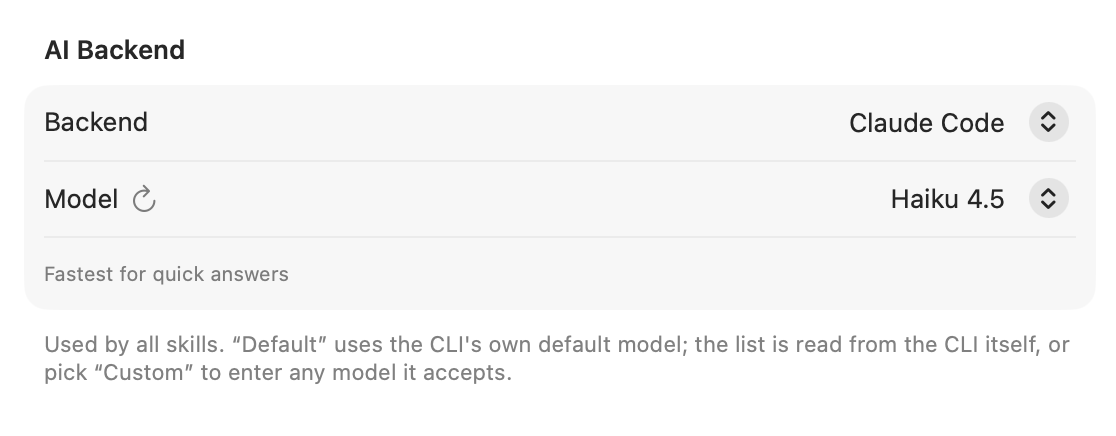
Claude Code or Codex
If you use Anthropic's Claude Code or OpenAI's Codex command-line tool, Cue can run on it — with the account and plan you're already signed in with. Install the tool and sign in following its own instructions, then choose it as the Backend.
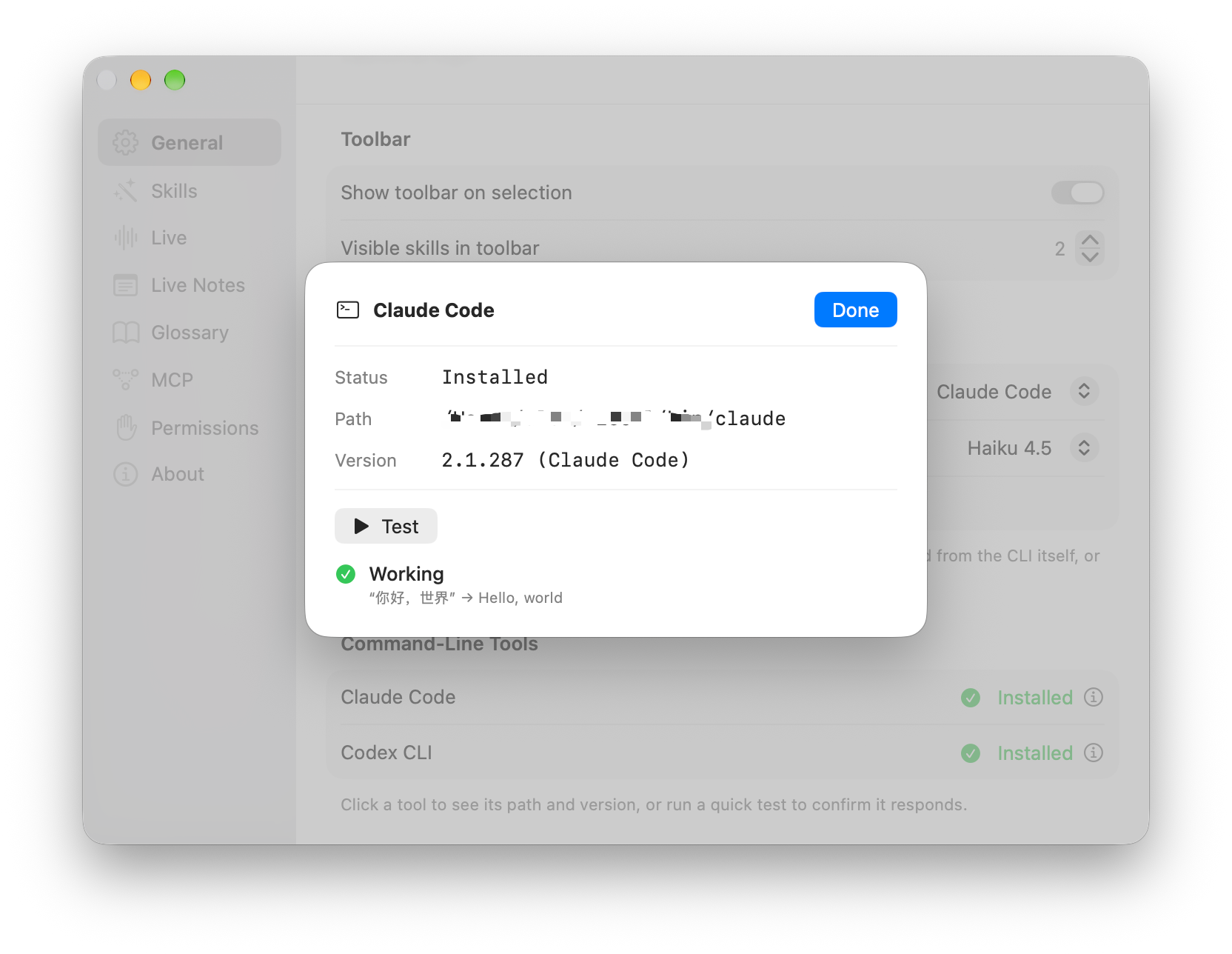
The Command-Line Tools section shows whether each tool was found. Click a tool to see its path and version, and press Test to send a tiny translation request through exactly the same path Cue uses for skills.
Model. Default uses the tool's own default. When you select the backend in Settings, Cue reads the list of models that tool currently offers and shows them in the picker, with a one-line description of the selected one. Use the refresh button next to Model to read the list again, or choose Custom to type any model name the tool accepts. Smaller models such as Haiku answer fastest.
Cue always runs these tools without tools of their own — no web browsing, no file access, no commands, and none of your MCP servers. Skills only work on the text you give them, which also keeps them fast.
Your own API key
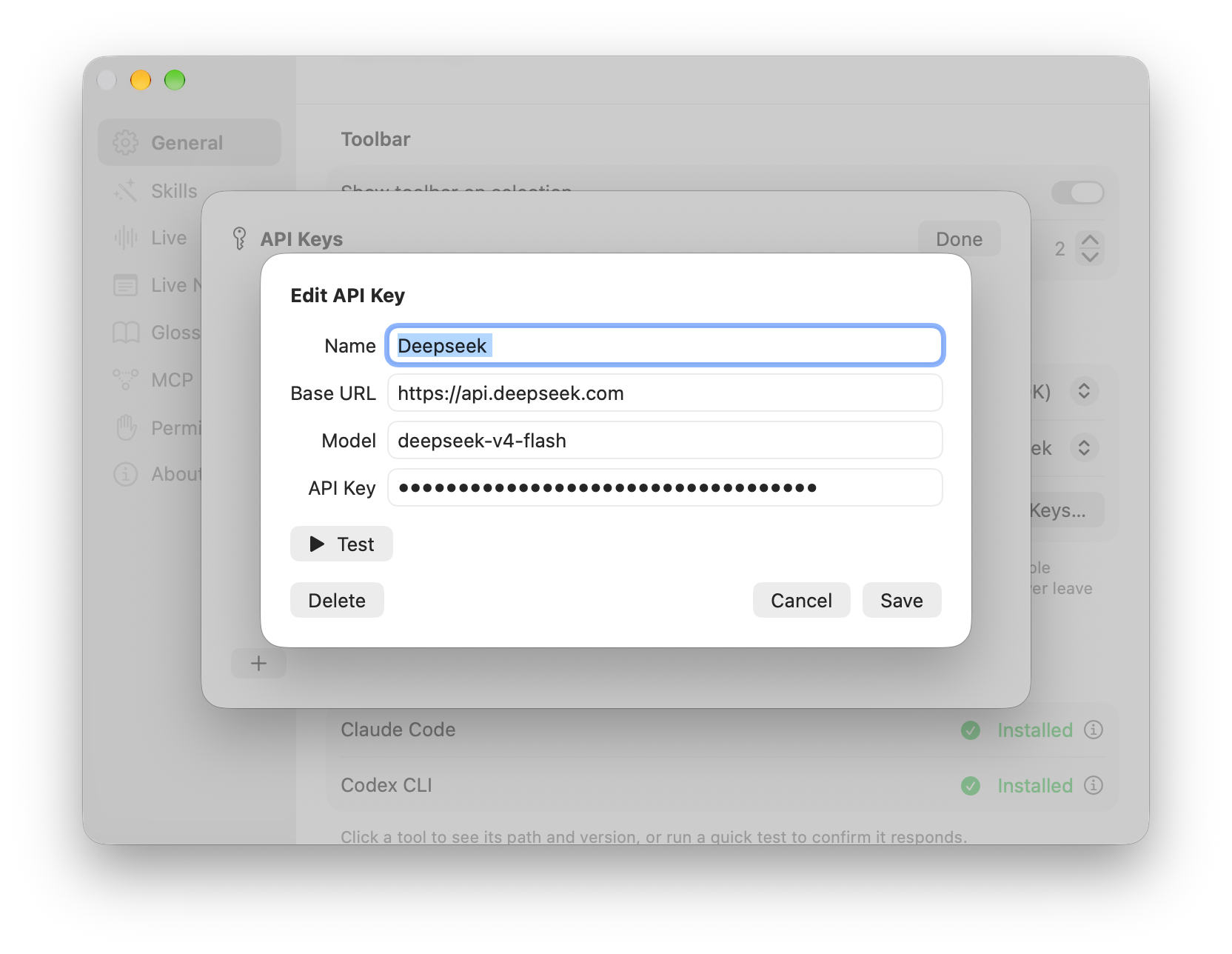
No command-line tool? Choose API Key (BYOK) as the Backend and add a key for any OpenAI-compatible service — OpenAI, DeepSeek, OpenRouter, and many others.
- Click Add API Key…
-
Fill in a Name (optional), the Base URL (for example
https://api.openai.com/v1), the Model, and your API Key. - Press Test to check it works, then save.
You can save several configurations; the one with the checkmark is used. Manage them with Manage API Keys…. With an API key, answers arrive all at once rather than streaming word by word.
Selection toolbar
Select text anywhere — a web page, an email, a PDF, your code editor — by dragging with the mouse or with the keyboard (⇧ + arrow keys, ⌘A). A moment later the toolbar appears right next to the selection.
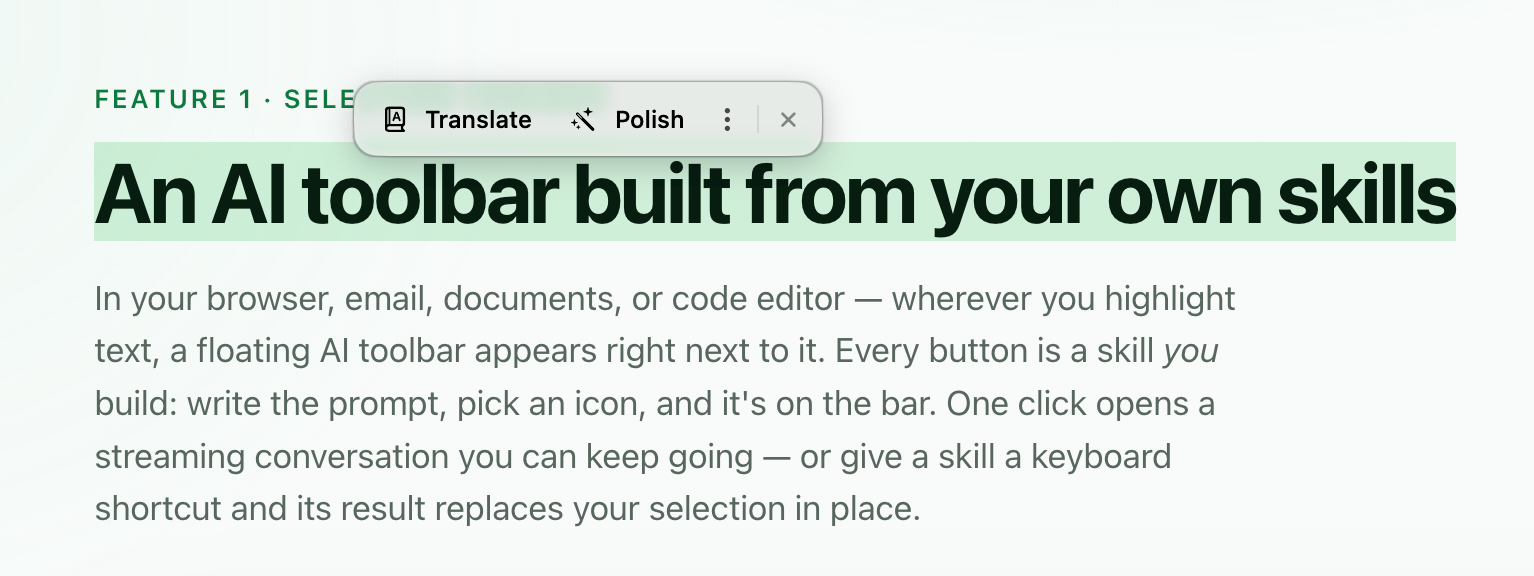
- Each button runs a skill on the selected text and opens a conversation.
- More skills than fit? They're under the ⋮ button.
- The × button closes the toolbar. It also disappears when you click elsewhere.
- Hover a button to see its name and shortcut, if it has one.
Prefer to call it up yourself? Turn off Settings → General → Show toolbar on selection (or Selection Toolbar in the menu). Skill shortcuts keep working either way.
Conversations
Clicking a skill opens a small floating window. The text you selected is the first message, and the skill's answer streams in as it's written.
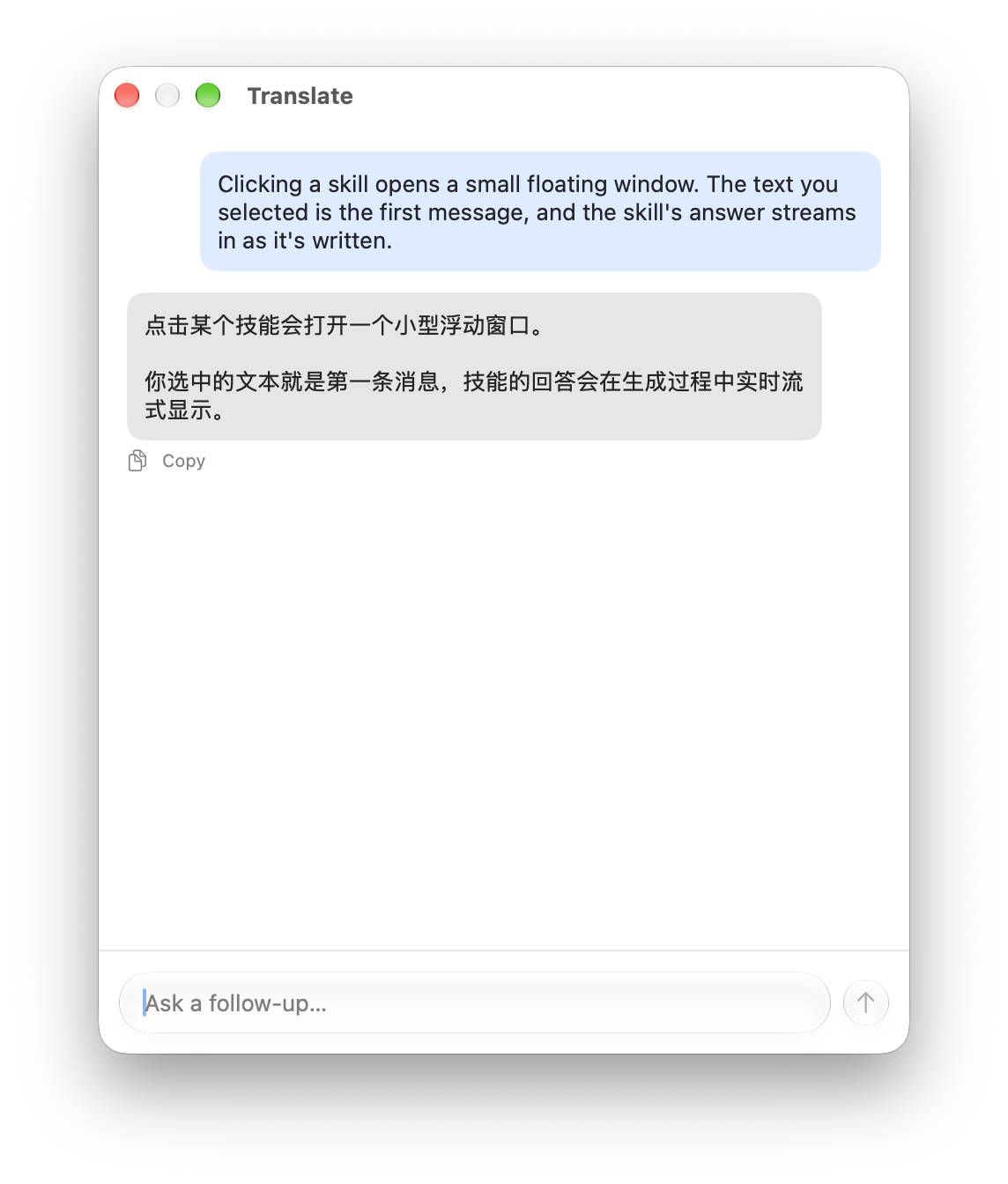
- Follow up in the box at the bottom and press Return. Follow-ups act on the previous answer — "shorter", "more casual", "explain the second point", or any question.
- Stop an answer with the glowing stop button. Cue keeps the conversation, so you can carry on from where it stopped.
- Copy any answer with the Copy button under it.
- The window floats above other apps and can be moved and resized.
New Chat (⌘N in the menu) opens the same window without a selection, for a regular back-and-forth chat.
Skills
A skill is a prompt that tells the AI what to do with your selection. Cue starts with two — Translate (into English, or into Simplified Chinese if the text is already English) and Explain — and you can change them or add your own in Settings → Skills.
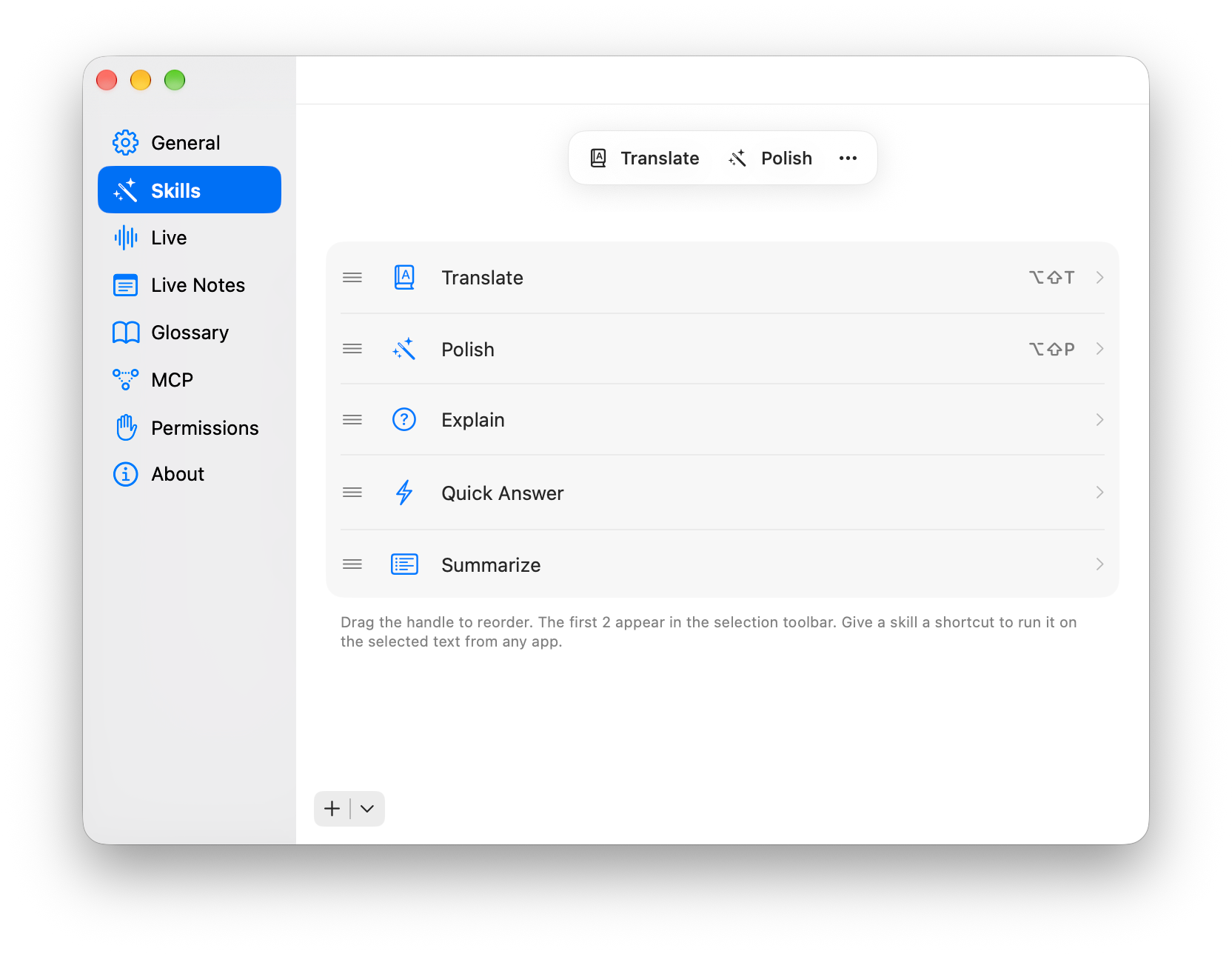
- Add a skill with + at the bottom. (The same menu has Reset to Defaults.)
- Edit one by clicking its row.
- Reorder by dragging the handle. The first skills appear as toolbar buttons; the rest go under ⋮. With Pro you can choose how many show in Settings → General → Visible skills in toolbar.
Editing a skill
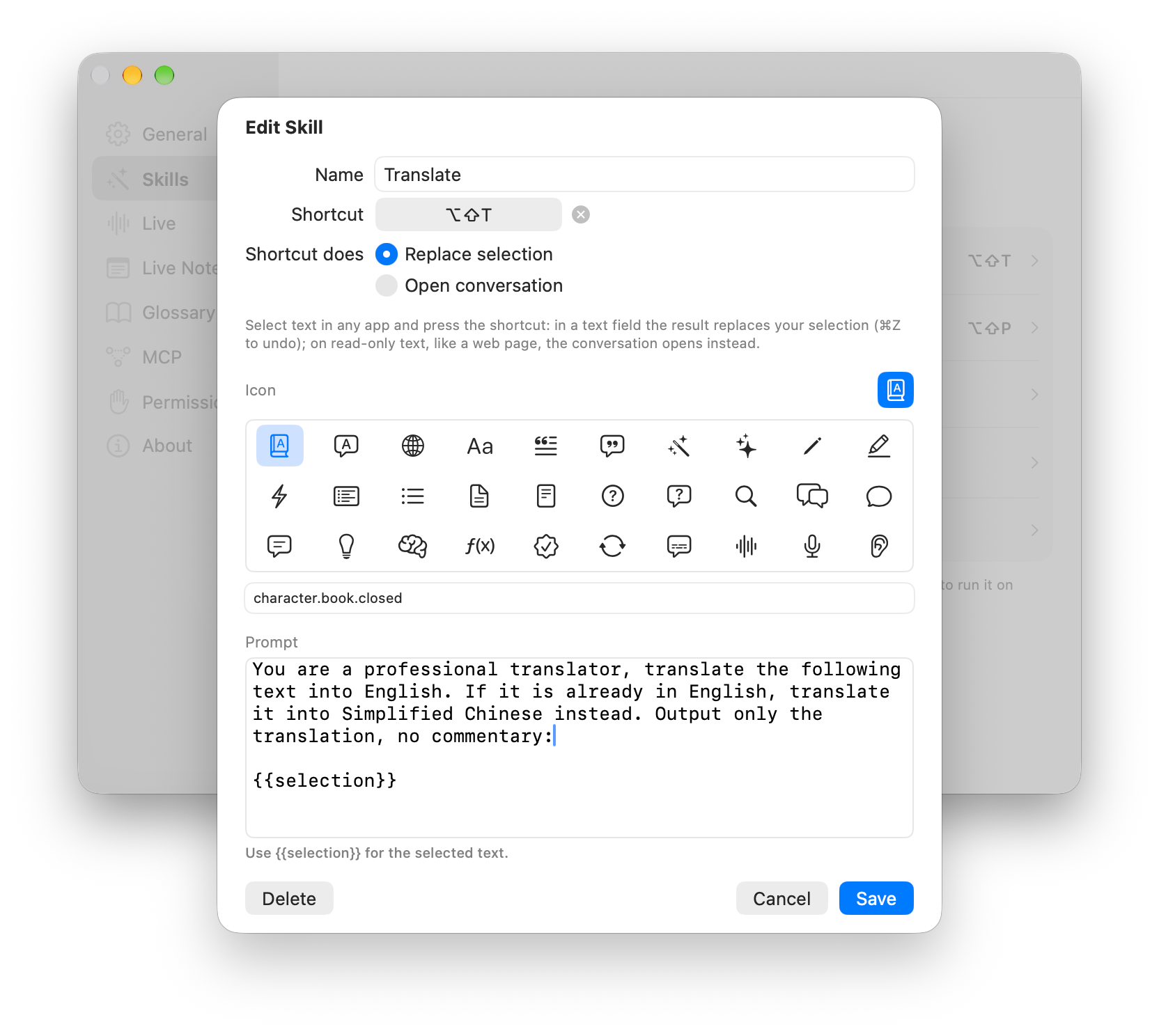
| Name | The button label. |
| Shortcut | Optional — see Skill shortcuts. |
| Icon | Pick one from the grid, or type any SF Symbol name. |
| Prompt | What the AI should do. Write {{selection}} where the selected text belongs; if you leave it out, Cue still sends the selection. |
Writing good prompts
- Say exactly what you want back: "Output only the translation, no commentary."
- Be specific about language and tone: "Rewrite in a friendly, concise tone. Keep the original language."
- Extras are fine in conversations — "…then list what you changed" — but they're dropped when the skill replaces your selection via a shortcut.
Skill shortcuts
Give a skill a keyboard shortcut and you can run it without the toolbar. Select text, press the shortcut, and — in a text field — the result replaces your selection right where you typed it. It's the fastest way to translate or polish a message before you send it.
Set one up
- In Settings → Skills, click a skill to edit it.
- Click Record Shortcut and press the keys you want. A shortcut needs ⌃, ⌥, or ⌘ — for example ⌥⇧T. Press Esc to cancel or Delete to clear it.
- Choose what it does: Replace selection or Open conversation.
- Save. The shortcut works in every app right away.
No skill has a shortcut until you give it one. Two skills can't share a shortcut, and if another app already uses yours, the skill's row shows a warning so you can pick another.
Replace selection
- Select text in a text field — a message box, a document, a browser search box — and press the shortcut.
- A small capsule next to your selection shows the skill working. Press Esc — or the shortcut again — to cancel.
- The result replaces your selection, and the capsule shows Replaced · ⌘Z to undo. Press ⌘Z in the app to get your original text back.
A few things Cue does to keep this safe:
- Only the final text goes in. If a skill's prompt also asks for explanations or a list of changes, those are left out when replacing.
- It checks before pasting. If you switched apps or changed the selection while waiting, Cue doesn't paste — it copies the result instead, so you can paste it with ⌘V where you want.
- Read-only text opens a conversation instead. Text you can't edit — a web page, a PDF, a message you received — can't be replaced, so the shortcut opens the skill's conversation there.
- Your clipboard is preserved. Cue pastes through the clipboard and puts your previous contents back afterwards.
- Shortcuts don't run in password fields.
Live subtitles & translation
Cue can turn a meeting's audio into live subtitles — and translate them — entirely on your Mac. Nothing is sent over the network and no AI service is involved. This works on the Free plan.
Set up once
In Settings → Live:
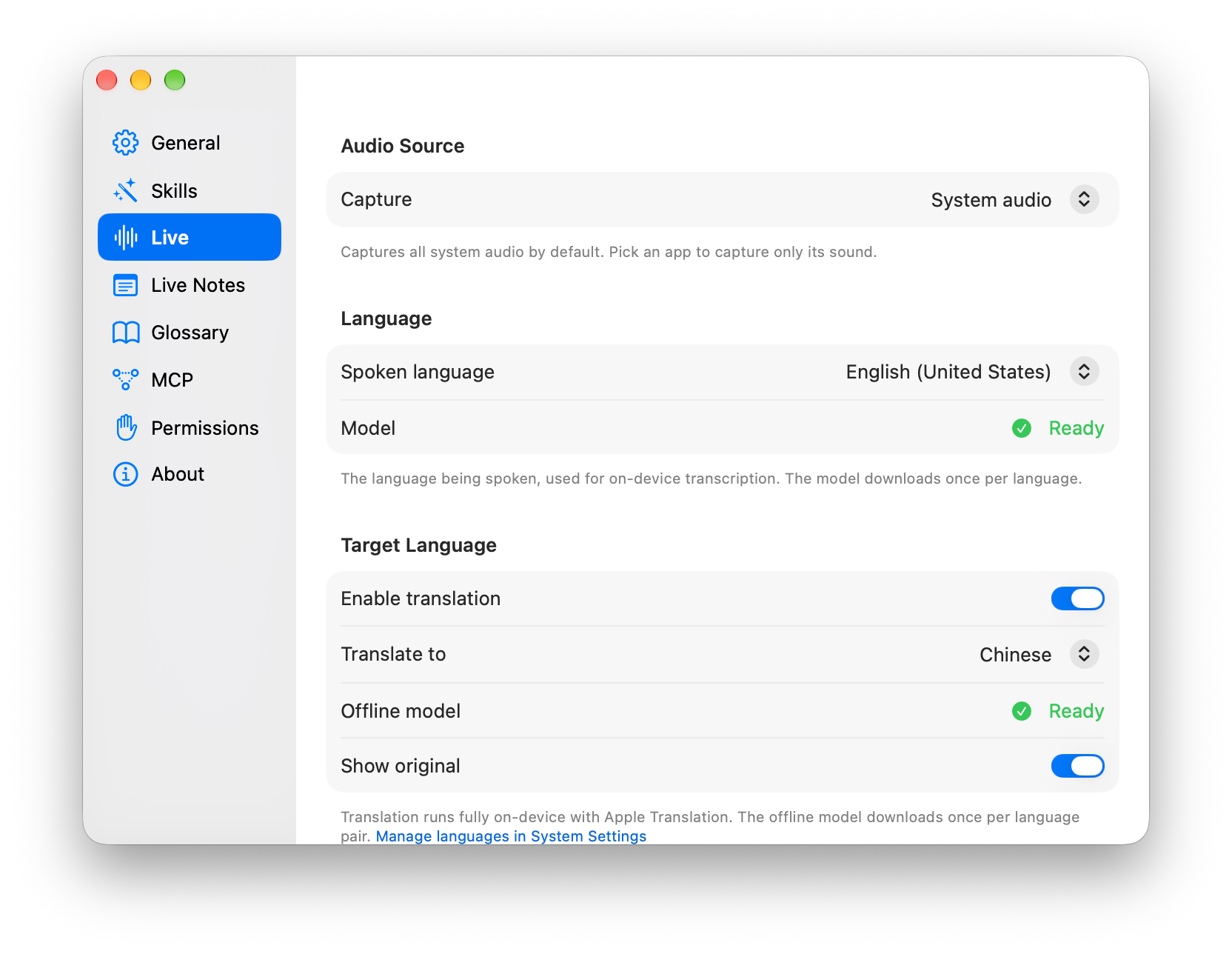
- Audio Source — capture all system audio, or pick one app (your meeting app) to hear only its sound.
- Spoken language — the language people speak. Download its speech model once (the status shows Ready when done).
- Enable translation and Translate to — the language you want to read. Download the offline translation model once. Turn on Show original to see the original line above each translation.
- Font size — the subtitle text size.
During a meeting
Choose Start Live Transcript from the menu. A floating subtitle bar appears near the bottom of your screen and fills in as people talk — a dimmed draft first, then the finished sentence.

- Move it by dragging its top bar; resize it from any edge or corner.
- A− / A+ change the text size.
- The globe turns translation on or off; the lines button shows or hides the original text.
- Scroll up to review earlier lines. You can select and copy subtitle text.
- × stops the transcript (or choose Stop Live Transcript in the menu).
Live Notes Pro
Turn on Settings → Live → Auto-save transcript and every meeting is saved as a Markdown file. The file is created when the transcript starts and each finished line (original and translation) is added as it happens, so nothing is lost if you stop early.
- Files go to Documents/Cue Live Notes by default — choose another folder with Save to → Choose…
- Each file is named by its start time, like
Cue-Live-Notes-2026-10-09-143000.md.
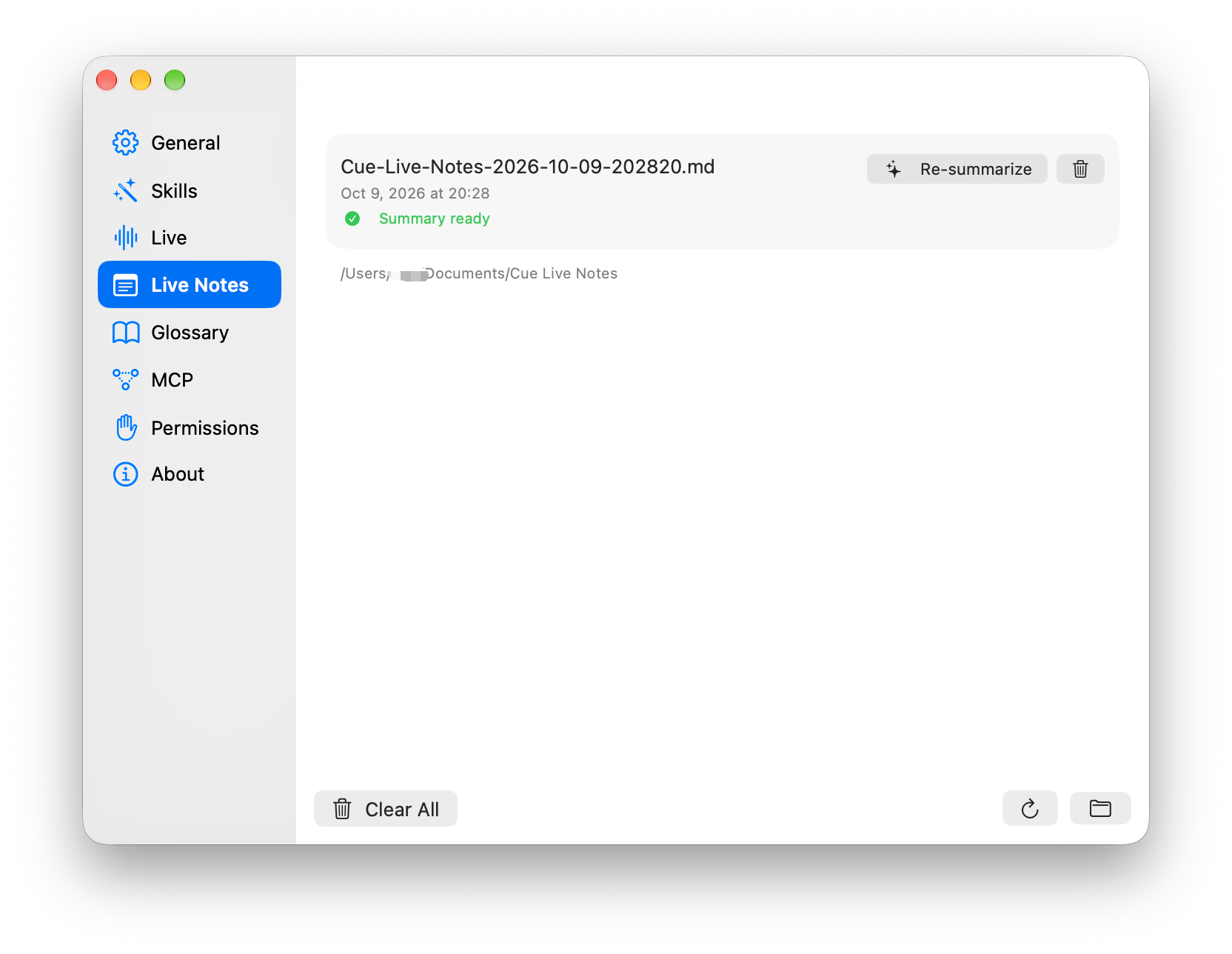
Settings → Live Notes lists your saved notes. From there you can summarize a note, reveal it in Finder, or delete it — deleted notes (and their summaries) go to the Trash. Clear All removes every note except one that's still recording.
AI summaries Pro
Turn on Settings → Live → Summarize live notes with AI when it ends (or
Summarize Live Notes in the menu). When a meeting ends, Cue sends its
transcript to your AI backend and saves the summary as a separate
file next to it, ending in -summary.md. Summaries need auto-save to be on.
The default summary lists the key discussion points and the action items (with owners and due dates when they were mentioned), written in the meeting's main language. Change it in Summary prompt; Reset to default brings back the original.
Speaker labels Pro
Turn on Settings → Live → Label speakers (or Label Speakers in the menu) to find out who said what. Cue keeps a copy of the meeting audio while it runs; after the transcript stops, it transcribes the recording again on your Mac and tags each line — Speaker 1, Speaker 2, and so on. The labeled version replaces the saved note, and the temporary recording is deleted.
- The speaker model (about 490 MB) downloads once on first use, then works offline.
- Live subtitles aren't affected — labels are added after the meeting.
Share notes with AI agents Pro
For developers: Cue can let AI agents on your Mac — Claude Code, Codex, Cursor, and other MCP clients — read and tidy up your Live Notes. It's off by default.
- In Settings → MCP, turn on Enable MCP server.
- Choose what agents may do: Read live notes, and optionally Write live notes (update and delete).
- Click Copy configuration and add it to your agent's MCP settings. Your agent needs to support MCP over HTTP.
Agents get four tools:
list_live_notes | List saved notes, and whether each has a summary. |
get_live_note | Read a note, plus its summary if there is one. |
update_live_note | Replace or append to a note (needs Write). |
delete_live_note | Move a note and its summary to the Trash (needs Write). |
The server only listens on your own Mac (127.0.0.1) and every request needs a
token. Reset token cuts off every connected agent. Agents can only reach notes
in your notes folder, and never the note that's currently recording.
Free vs Pro
| Free | Pro | |
|---|---|---|
| Selection toolbar, conversations, New Chat | ✓ | ✓ |
| Skills | Up to 2 | Unlimited |
| Skill shortcuts | ✓ | ✓ |
| Choose how many skills show in the toolbar | — | ✓ |
| Live subtitles & on-device translation | ✓ | ✓ |
| Live Notes (auto-save & manage) | — | ✓ |
| AI meeting summaries | — | ✓ |
| Speaker labels | — | ✓ |
| Share notes with AI agents (MCP) | — | ✓ |
Pro is a one-time purchase — see pricing. To activate, open Settings → About, paste your license key, and press Activate. About shows how many of your license's activations are in use.
Moving to a new Mac? Press Deactivate This Mac first, then activate the same key on the other Mac. If a Pro license lapses, your extra skills are kept, and Pro features come back as soon as you reactivate.
Privacy & your data
- Meetings stay on your Mac. Transcription, translation, and speaker labels run on-device. Transcripts are only sent anywhere if you turn on AI summaries — and then only to the AI backend you chose.
- Skills send only what you ask them to. When you run a skill, the selected text and the skill's prompt go to your AI backend: your Claude Code or Codex account, or the API endpoint you configured.
- No analytics in the app. Cue doesn't track how you use it.
- Licensing talks to Lemon Squeezy only to activate, check, or deactivate your license.
Settings, skills, API keys, and license details are stored as local files in
~/Library/Application Support/Cue/. Live Notes are plain Markdown files in the
folder you chose. See the full Privacy Policy.
Keyboard reference
| Your skill shortcuts (e.g. ⌥⇧T) | Run the skill on the current selection, from any app. |
| Esc (while a shortcut runs) | Cancel. |
| ⌘Z (after a replacement) | Undo it in the app you're typing in. |
| Return (in a conversation) | Send your follow-up. |
| ⌘N · ⌘, · ⌘Q (in Cue's menu) | New Chat · Settings · Quit. |
Troubleshooting
The toolbar doesn't appear
- Check that Accessibility is granted in Settings → Permissions.
- Check that Show toolbar on selection is on (Settings → General, or Selection Toolbar in the menu).
- In Chrome and other Chromium browsers the very first selection can be missed while the page's accessibility support switches on — select again.
- Some apps don't share their selected text with macOS; skill shortcuts still work there by copying it.
A skill fails or says the CLI wasn't found
- Open Settings → General → Command-Line Tools. If your tool shows Not found, install it; if it's installed, click it and press Test to see the exact error.
- Make sure you're signed in to the tool and your plan has usage left.
- If you picked a specific model, try Default — the model may not be available on your account.
- With an API key, open Manage API Keys… and press Test; check the Base URL and model name.
A skill shortcut does nothing
- If the skill's row in Settings → Skills shows a warning, another app owns that shortcut — record a different one.
- Make sure some text is selected; Cue shows Select some text first otherwise.
- Shortcuts don't run in password fields.
The result was copied instead of replacing my text
Cue only pastes if the same text is still selected in the same app when the answer arrives. If you clicked elsewhere or switched apps while waiting, it copies the result instead — paste it with ⌘V. On read-only text the shortcut opens a conversation rather than replacing.
No subtitles appear
- Grant Screen Recording and Speech Recognition in Settings → Permissions.
- In Settings → Live, check that the speech model for the spoken language shows Ready.
- If you picked a specific app as the audio source, make sure that's the app playing the audio — or switch to System audio.
The translation never shows
- Turn on Enable translation and download the offline model for your language pair in Settings → Live.
- If the status says Not available, macOS doesn't offer that language pair for on-device translation.
Still stuck?
Email [email protected] with your Cue version (shown in Settings → About) and what you tried.